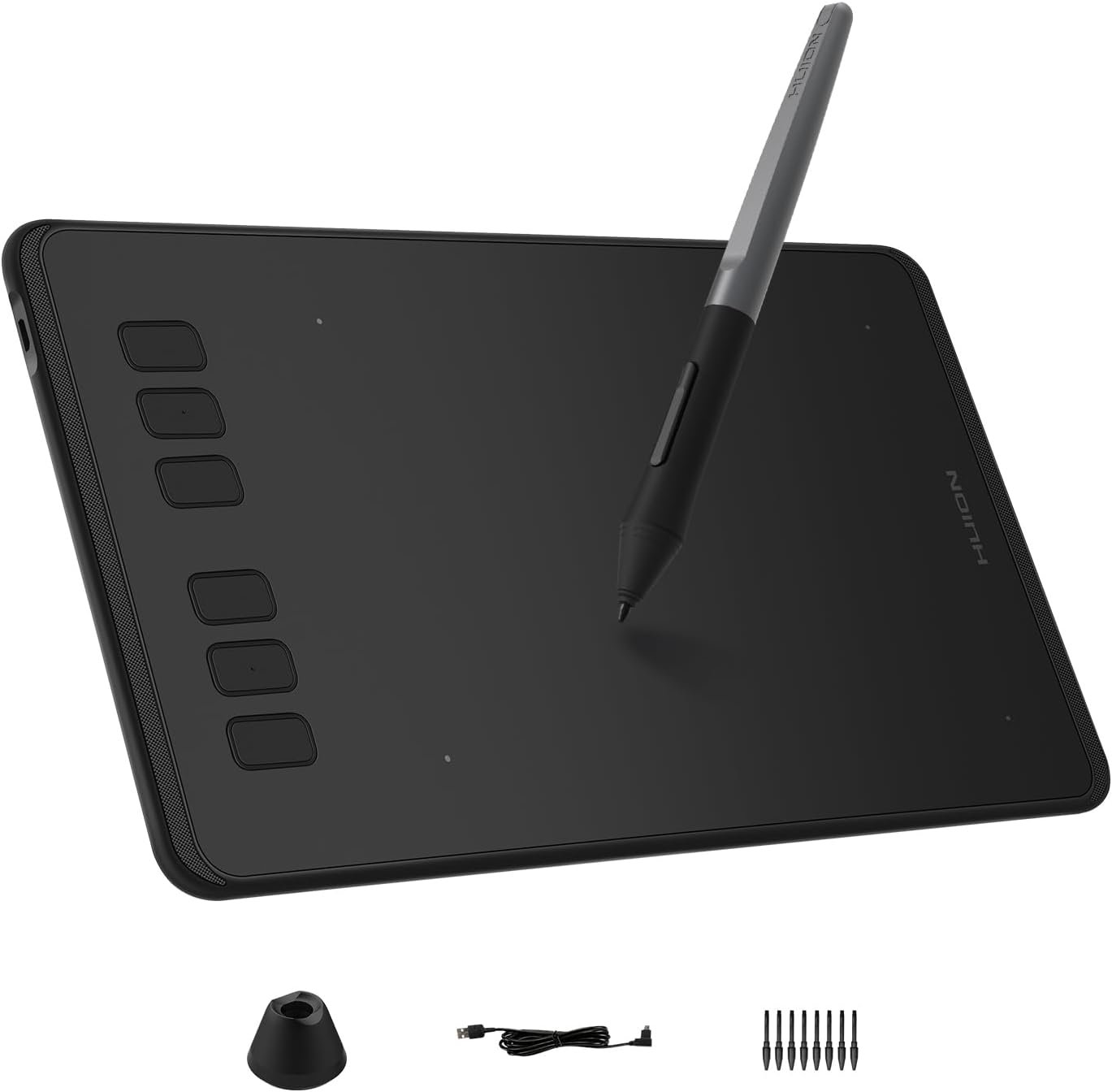
Setting up a drawing tablet for the first time can feel a bit overwhelming, especially if you are new to digital art or online teaching tools. The good news is that the HUION Inspiroy H640P is designed to be simple, fast, and user-friendly. Whether you plan to use it for drawing, graphic design, note-taking, online classes, or professional work, this guide will help you get started smoothly.
Below is a step-by-step explanation to set up your HUION Inspiroy H640P drawing tablet correctly and start using it with confidence.
Start by plugging the USB cable into your HUION Inspiroy H640P drawing tablet and then connect the other end to your computer.
Once connected, your system will recognize the device automatically. There is no need to charge the stylus since it is battery-free, which means you can begin using it right away without worrying about power issues.
If you want to use the tablet with an Android smartphone or tablet, use the OTG adapter included in the box. This adapter allows direct connection to supported Android devices, making it useful for quick sketches or mobile teaching setups.
To unlock the full functionality of the tablet, you need to install the official HUION driver on your computer.
Visit the official HUION website and download the latest driver for your operating system. Make sure you choose the correct version for Windows or macOS.
For macOS users, an additional step is required. After installing the driver, go to Security & Privacy settings on your Mac and allow the HUION driver access. This step is essential for the tablet and stylus to function properly.
Once the driver installation is complete, do not skip the restart process, as it helps the system apply all driver settings correctly.
After restarting your computer, open the HUION driver software. From here, you can customize the tablet exactly to your preferences.
You can set up the working area according to your screen size, configure the six shortcut keys for frequently used actions like undo, zoom, or brush selection, and assign functions to the pen buttons for faster control.
Spend a few minutes testing different settings to find what feels most natural for your workflow. Proper customization can significantly improve your drawing speed and comfort.
Over time, pen nibs wear out, especially with regular use. Replacing them is quick and easy.
First, use the nib extractor located at the bottom of the pen holder to gently pull out the used nib. Next, open the pen holder and take out a replacement nib stored inside. Finally, insert the new nib into the pen and push it in gently until it fits securely.
Changing nibs regularly helps maintain smooth strokes and protects the tablet surface from unnecessary scratches.
The HUION Inspiroy H640P drawing tablet is one of the easiest tablets to set up, even for beginners. With just a simple connection, driver installation, and quick customization, you can start creating digital art, teaching online, or working on design projects in no time.
Its compact size, pressure-sensitive battery-free stylus, and customizable shortcut keys make it a reliable choice for both beginners and professionals. Once set up properly, the tablet delivers a smooth and responsive experience that enhances creativity and productivity. You can also check HUION Inspiroy H640P Drawing Tablet Review.
To know more about our platform, visit our About Us page.


Comments